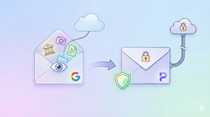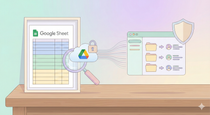
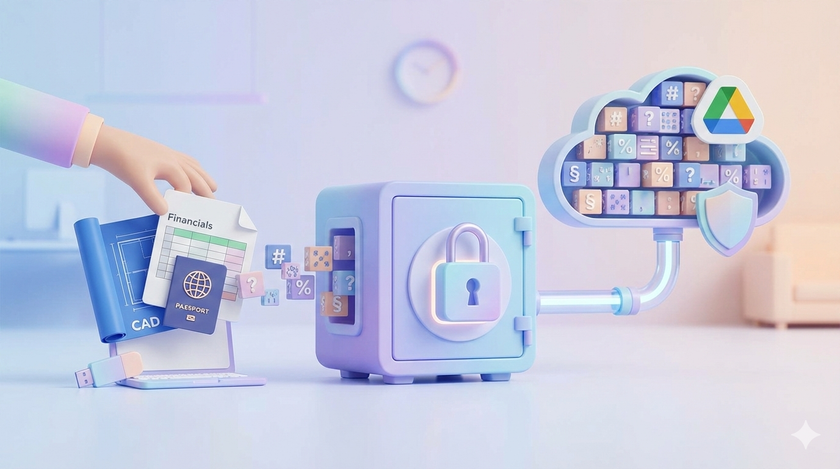
You have some files you do not feel comfortable putting on Google Drive.
CAD drawings for a product you are developing. Financial statements you do not want anyone stumbling upon. Scanned identity documents. Trade secrets. Pricing strategies.
So where do these files sit today?
On your laptop. On a USB drive in your drawer. On an external hard disk somewhere. Maybe emailed to yourself.
No proper backup. No sync across devices. No access when you are travelling. Because the moment you put them on Google Drive, they feel exposed.
Here is something you may not know exists.
You can store files on Google Drive in a way that nobody can open them without a password you create. Not Google. Not anyone who gets into your account. Not anyone in the world.
No "forgot password" option. No recovery. No backdoor. If you have the password, the files open. If you do not, they are gone forever.
For most files, this is overkill. But for some files, this is exactly what you need.
How it works
There is a free tool called Cryptomator.
You install it on your computer. You create a "vault" inside your Google Drive folder. You set a password for the vault.
The vault looks like a regular folder on your computer. You can put files in, open them, edit them, delete them. Everything works normally.
But here is what happens behind the scenes.
Every file you put in the vault gets encrypted before it syncs to Google Drive. What reaches the cloud is scrambled data. Random characters. Completely unreadable.
| What you see on your computer | What syncs to Google Drive |
|---|---|
| Product_Design_v3.dwg | 7Hx9kL2mNpQ4vB... |
| Financial_Statement_2024.xlsx | 3WsY8vB1cR5nM... |
| Partnership_Agreement.pdf | 9QzT4wE6uI0pL... |
When you want to access the files, you open Cryptomator, enter your password, and the vault unlocks. Now you can see and use your files normally.
When you close the vault, the files disappear from view. Only the encrypted versions remain on Google Drive.
What you get
Cloud backup. Your files are on Google Drive. If your laptop dies, your files are safe.
Sync across devices. Install Cryptomator on another computer or your phone. Same vault, same password, same files.
Access from anywhere. Travelling without your laptop? Access your vault from any computer with Cryptomator installed.
Complete privacy. The files on Google Drive are unreadable without your password. Google cannot read them. Nobody can.
What you give up
No web access. You cannot open these files from drive.google.com. You need Cryptomator installed.
No Google Docs/Sheets. This works only with regular files like PDFs, Excel, images, CAD files. Not with Google's online documents.
Password responsibility. If you forget the password and lose the recovery key, the files are gone. There is no reset option.
Extra step. You need to unlock the vault before accessing files and lock it when done.
What you need
Google Drive for Desktop. The app that syncs Google Drive to a folder on your computer. If you already see a Google Drive folder on your PC that syncs automatically, you have this.
One setting to check: In Google Drive preferences, make sure "Mirror files" is selected, not "Stream files." This makes Cryptomator work smoothly.
Cryptomator. Download from cryptomator.org. Free on Windows, Mac, Linux. Phone apps cost around ₹650 to ₹900 one time.
Setting it up
I am not going to write step-by-step instructions here. There are many YouTube videos that show exactly how to set up Cryptomator with Google Drive. Search "Cryptomator Google Drive setup" and follow along.
The basics:
- Install Cryptomator
- Create a new vault
- Choose your Google Drive folder as the location
- Set a strong password
- Save the recovery key somewhere safe (print it, put it in a password manager, keep it offline)
Takes about 10 minutes.
Sharing with others
If you want someone else to access your encrypted files, they need two things:
- Cryptomator installed on their computer
- The password
You share the vault folder through Google Drive normally. They install Cryptomator, open the vault, enter the password you give them.
This adds friction. For files you share regularly with many people, encryption is not practical. For files you share occasionally with one or two trusted people, it works fine.
Who is this for
You have files that:
- Need to be backed up properly
- Should not be readable if someone gets into your account
- You do not need to access constantly
- You do not need to edit collaboratively online
Examples: Signed contracts. CAD drawings. Source code. Financial records. Identity documents. Legal agreements. Anything you currently keep on a USB drive because you do not trust the cloud.
Who is this not for
If all your sensitive work happens in Google Sheets and Docs, Cryptomator will not help. Those files need to stay in Google's format.
If you need to share files with many people constantly, the password sharing becomes impractical.
If you cannot commit to remembering a password or keeping a recovery key safe, do not use this. You will lock yourself out.
The bottom line
Cryptomator is not something everyone needs. Most files are fine on regular Google Drive.
But if you have files sitting on a USB drive or your laptop with no backup because you did not trust cloud storage, now you have an option.
Same cloud. Same sync. Same backup. But with a lock that only you control.
This week: If you have files like this, search "Cryptomator setup tutorial" on YouTube. Watch one video. See if it fits your needs.