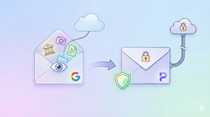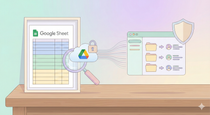
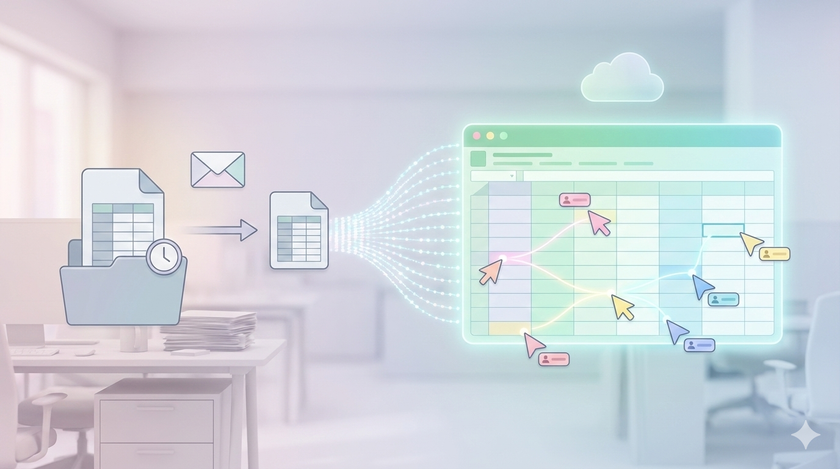
This is where Google Sheets becomes fundamentally different from Excel.
In Excel, a file lives on someone's computer. If you want to work on it, you need a copy. If two people need to update it, one person works on it first, saves it, emails it to the second person, who makes their changes, saves it, and emails it back. Or worse, both people work on their own copies and someone has to "merge" them later.
You have seen this. The file called "Sales Report Final." Then "Sales Report Final v2." Then "Sales Report Final v2 Updated." Then "Sales Report Final v2 Updated Manish Changes." Nobody knows which one is current. Nobody knows whose changes made it in.
This problem disappears completely with Google Sheets.
One file, many people, same time
A Google Sheet does not live on anyone's computer. It lives on the cloud. When you open it, you are not opening a copy. You are opening the actual file.
If three people open the same sheet at the same time, all three are looking at the same data. If one person types something in cell B5, the other two see it appear within seconds. No saving. No emailing. No merging.
You can literally watch someone else type.
This sounds small. It changes everything.
"But I can do this on OneDrive too"
Yes, you can.
Microsoft now offers real-time collaboration through Excel Online and OneDrive. If you save your Excel file to OneDrive or SharePoint, multiple people can work on it simultaneously using the co-authoring feature. This is a significant improvement from how Excel worked for decades.
So why are we using Google Sheets in this series?
Three reasons.
First, this entire system is built on Google Workspace. The forms, the sheets, the scripts, the automation tools we will build later, everything connects. The delegation sheet you saw in the workshop runs on Google Apps Script. The forms feed directly into sheets. The dashboards we will create use Google's tools. If you use OneDrive for spreadsheets but Google for forms, you create unnecessary complexity. One ecosystem is simpler than two.
Second, Google Sheets was designed for collaboration from day one. Excel was built as a desktop application for a single user. Collaboration was added later. Google Sheets was born in the cloud, built for teams. The difference shows in small things. In Google Sheets, autosave is automatic and always on. In Excel, you need to enable autosave and connect to OneDrive first. In Google Sheets, you can give someone "comment only" access. In Excel Online, you can only give view or edit access, not comment-only. These are not dealbreakers, but they add friction.
Third, everyone following this series will be on the same platform. When you have a question, you can ask. When I share a template, you can use it directly. When we build something new, it works for everyone. If half the group is on OneDrive and half on Google, support becomes complicated.
If your organization already runs on Microsoft 365 and OneDrive, and everyone is comfortable with it, you do not have to abandon it. The principles of real-time collaboration apply to both platforms. But for the systems we are building together, we use Google.
One more thing. Excel's desktop application, which is more powerful than Excel Online, does not support simultaneous editing. If someone opens the file in desktop Excel while you are editing in Excel Online, things can get messy. Google Sheets does not have this problem because there is no desktop version. The cloud version is the only version.
Now, let us continue.
What this means for your business
Think about how information moves in your organization today.
Someone maintains a stock register. Another person needs the current stock to promise delivery to a client. They call or message the first person. "What is the stock of X?" The first person checks and replies. This happens twenty times a day.
Or someone updates a price list. They email it to the sales team. But one salesperson missed the email. They quote old prices. The client is upset. Who is at fault?
Or the MIS executive prepares a report. Sends it to the business owner. The owner has questions. Sends it back with comments. The MIS executive makes changes. Sends it again. Three days pass in back and forth.
Now imagine:
The stock register is a Google Sheet. The salesperson opens it and sees current stock. No call needed.
The price list is a Google Sheet. When it updates, everyone sees the update. There is no "old version" floating around.
The report is a Google Sheet. The owner opens it, sees something odd, leaves a comment on that cell. The MIS executive sees the comment, fixes it, replies. Done in ten minutes.
Same data. No waiting. No versions. No confusion.
How sharing works
You control who can access your sheet and what they can do.
Click the "Share" button in the top right corner. You get three options for each person:
Viewer: Can see the data. Cannot change anything. Use this for people who need to check information but should not edit it.
Commenter: Can see and leave comments. Cannot change data. Use this for people who need to review or ask questions but should not make direct changes.
Editor: Can see, comment, and change anything. Use this for people who need to update data.
You can share with specific people using their email address. They will need to be logged into that Google account to access the sheet.
You can also create a link that anyone with the link can view. Be careful with this for sensitive data. We covered the risks in the sharing post earlier in this series.
Seeing who changed what
Here is something powerful.
In Google Sheets, go to File, then Version History, then See Version History.
You will see a timeline of every change made to the sheet. Who made it. When they made it. What the sheet looked like before and after.
If someone accidentally deletes important data, you can restore an earlier version. If you want to know who changed a number, you can find out.
This is automatic. You do not have to turn it on. You do not have to remember to save versions. Google does it for you.
For any individual cell, you can right-click and select "Show edit history." This shows you every change made to that specific cell.
When something goes wrong, you do not have to ask "who did this?" You can just look.
Note: Excel Online also offers version history if the file is saved to OneDrive. This is not unique to Google Sheets. But in Google Sheets, it works by default without any setup.
Comments and conversations
You can leave a comment on any cell.
Right-click the cell, select Comment, type your message. If you type @ followed by someone's email, they will get a notification.
"@[email protected] Can you verify this number? Seems too high."
Manish gets an email. He clicks the link, opens the sheet, sees the comment, checks the number, replies in the comment thread. You get notified of his reply.
The conversation stays attached to the cell. Anyone who looks at that cell later can see the discussion.
This replaces a hundred WhatsApp messages and email threads. The context stays with the data.
The mental shift
Here is what takes time to get used to.
In Excel, you think of a spreadsheet as "my file." You own it. You control it. You send copies to others when needed.
In Google Sheets, you think of a spreadsheet as "our system." Multiple people use it. It belongs to the process, not to a person.
This feels uncomfortable at first. What if someone breaks something? What if someone sees data they should not see?
These concerns are valid. The answer is not to avoid sharing. The answer is to design your sharing correctly.
Give view access to people who only need to see. Give edit access to people who need to update. Use protected ranges for cells that should not be changed. Check version history if something looks wrong.
The benefits of real-time collaboration far outweigh the risks. But you need to set it up thoughtfully.
Protected ranges
If you have a sheet where multiple people enter data, but some cells contain formulas that should never be touched, you can protect those cells.
Go to Data, then Protected Sheets and Ranges. Select the range you want to protect. Choose who can edit it.
Now if someone tries to change a protected cell, they get a warning. Your formulas stay safe. Your data entry people can do their work without accidentally breaking the report.
When to use this
Start with one shared sheet. Something simple.
Maybe a task list that you and your EA both need to see and update. Maybe a stock register that the warehouse person updates and the sales team checks. Maybe the summary dashboard you created from earlier posts, shared with view access to people who need to see the numbers.
Use it for a week. Notice what changes. Notice what questions stop being asked because the information is now visible. Notice how much faster things move when people can look instead of asking.
Then expand.
What you have now
If you have been following this series, you now have:
- Google Drive set up and organized
- Files and folders with proper sharing
- Google Forms collecting clean data
- Google Sheets with formulas that summarize automatically
- Sheets shared with the right people at the right access levels
Data flows in through forms. Formulas process it into reports. People access the reports directly.
This is a system. Not a collection of files.
Next post: Your data is now live and shared. But you are still opening the sheet to look at it. What if the sheet could notify you when something important happens? Alerts and notifications in Google Sheets.